Simplified Chat View: Streamlined AI Analysis
AI Crucible offers two ways to view your ensemble conversations: a clean Chat View for everyday use and a comprehensive Detailed View for in-depth analysis.
This guide explains both views, when to use each one, and how to switch between them.
What is the Simplified Chat View?

The Simplified Chat View presents AI Crucible conversations in a familiar chat-bubble interface. Your prompts appear on the right, AI responses on the left, showing only the final synthesized answer from each session.
This view hides intermediate model responses, comparison analysis, and round-by-round details. You see your question and the best answer, without the ensemble process that produced it. This creates a cleaner reading experience similar to ChatGPT or Claude.
Strategy details remain accessible through collapsible sections within each response. You can expand these to see participating models, costs, and performance metrics without switching views.
How do I switch between views?
The view toggle appears in the chat area toolbar, above your conversation results. Click Chat for the simplified bubble interface or Detailed for full ensemble breakdowns. The toggle shows icons with text labels on desktop, and icons only on mobile devices.
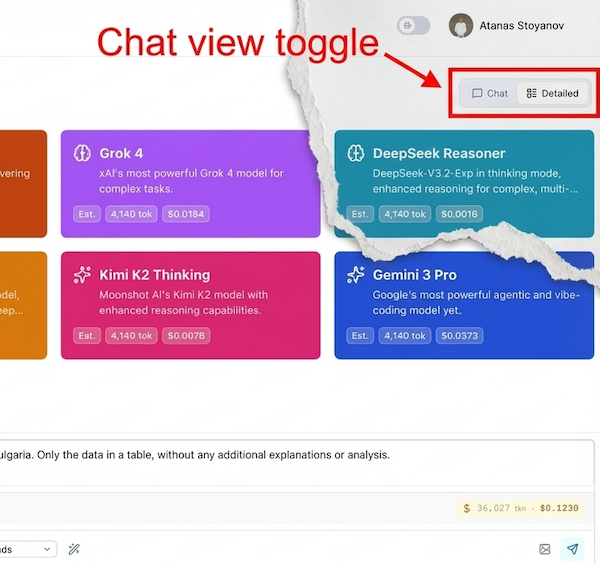
Your preference saves automatically to browser storage and persists across sessions. Switching views works instantly without reloading the page. All conversations display in your selected view until you change it again.
The default view depends on context: Dashboard conversations default to Detailed View, while shared chats default to Chat View for cleaner public presentation.
Why is the Detailed View important?
The Detailed View provides transparency and verifiability for AI Crucible's ensemble process. You see every model's response, the comparison analysis, and how the final answer was synthesized. This lets you verify quality and catch potential issues.
Without detailed visibility, you can't verify if the synthesized answer truly represents model consensus or cherry-picks specific viewpoints. High-stakes decisions require seeing the source reasoning, not just the final result. The Detailed View shows debate arguments, refinement iterations, or expert panel contributions depending on your strategy.
Use Detailed View when evaluating important recommendations, debugging unexpected results, or learning how different strategies work. Switch to Chat View for routine tasks where you trust the ensemble process.
How do I access strategy details in Chat View?
Click the "Synthesized by [Model Name]" label at the top of any response bubble. This expands a details panel showing strategy information without switching to Detailed View.
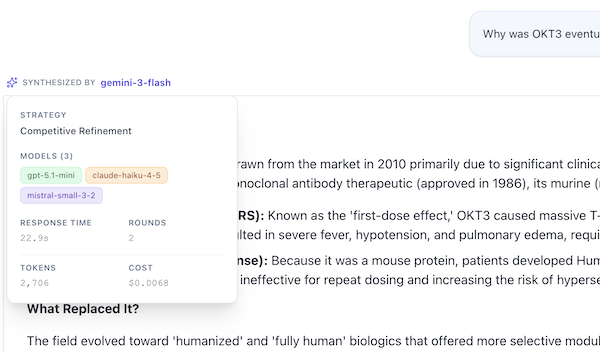
The panel displays:
- Strategy Name - The ensemble method used (Competitive Refinement, Expert Panel, etc.)
- Participating Models - All models that contributed responses
- Performance Metrics - Response time, token usage, and cost
- Configuration - Round count, arbiter model, and active optimizations
This provides transparency without the visual complexity of full model-by-model comparisons. Collapse the panel to return to clean chat mode.
How does Chat View improve performance?
Chat View automatically enables "minimal streaming mode" which changes how data flows to your browser. Individual model responses generate on the server without streaming to you, cutting data transfer by 60-70%. Only the final synthesized answer streams in real-time.
This optimization happens automatically when you select Chat View. The ensemble process runs identically—models still compete, refine, or collaborate as configured. The difference is purely in network transmission: one final stream instead of multiple concurrent model streams.
The bandwidth savings matter most on mobile devices or slower connections. Desktop users with fast internet see smaller performance gains, but the cleaner interface improves readability regardless of connection speed. If you have streaming disabled in settings, neither view streams any data.
How does view preference work when sharing?
Share links preserve your active view when you click the share button. If you're in Chat View, the link opens in Chat View. If you're in Detailed View, the link opens in Detailed View. However, shared chats default to Chat View if no view parameter is specified, providing a cleaner first impression for public audiences.
Recipients can toggle between views regardless of the initial view. The view selector appears in shared chat pages just like in the dashboard. This lets you control the default presentation while giving recipients full flexibility.
Authenticated users viewing shared chats can save them to their own chat history using the Save to History button in the toolbar. This creates a personal copy in their account with all conversation data preserved. The saved chat opens in their preferred default view.
For embedded chats, append ?view=chat or ?view=detailed to the embed URL to force a specific view. This overrides the default and ensures consistent presentation on your website.
When should I use Chat View vs Detailed View?
Use Chat View for routine queries where you trust the ensemble process and want clean, distraction-free reading. Use Detailed View for important decisions, debugging unexpected results, or learning how strategies work. The dashboard defaults to Detailed View for power users, while shared chats default to Chat View for accessibility.
Chat View is best for:
- Quick reference questions with straightforward answers
- Creative content where you care about the final output
- Reading through multiple conversation turns quickly
- Sharing polished results with non-technical audiences
- Mobile browsing where screen space is limited
- Slower connections where bandwidth matters
Detailed View is best for:
- High-stakes business or technical decisions requiring verification
- Debugging prompts that produce unexpected results
- Learning how different ensemble strategies function
- Comparing model reasoning approaches
- Identifying which models excel at specific tasks
- Understanding how consensus is reached across models
Switch between views freely. Your conversation data remains identical regardless of which view you use. The view toggle is available in both the dashboard and shared chat pages.
Frequently Asked Questions
Does Chat View change how the ensemble works?
No, Chat View only changes what you see, not how models process your prompt. The ensemble runs identically in both views. All models generate responses, the arbiter synthesizes them, and the complete data is stored. Chat View simply hides intermediate steps in the interface.
Can I switch views mid-conversation?
Yes, switching views works instantly at any time. Your entire conversation history displays in the new view immediately. This lets you start in Chat View for quick reading, then switch to Detailed View to inspect specific responses.
Will shared chats always open in my preferred view?
Shared chats open in whatever view you were using when you clicked share. Recipients can toggle to their preferred view after opening the link. You control the default, they control their experience.
Does Chat View save bandwidth and battery?
Yes, Chat View reduces bandwidth usage by 60-70% by streaming only the final answer instead of all model responses. This noticeably improves performance on mobile devices and extends battery life. Desktop users with fast internet see smaller benefits.
Can I see which models were used in Chat View?
Yes, click the "Synthesized by [Model Name]" label at the top of any response. This expands a panel showing all participating models, the strategy used, performance metrics, and costs without switching to Detailed View.
Does Chat View cost less than Detailed View?
No, costs are identical. Both views run the same ensemble process with the same models and rounds. The only difference is network bandwidth for streaming responses to your browser. Backend API costs remain unchanged.
How do I set my default view?
Your view preference saves automatically when you switch views. The next time you open AI Crucible, you'll see whichever view you used last. There's no separate settings toggle—just use the view you prefer.
Can I export conversations in Chat View format?
Currently, exports include full conversation data regardless of your active view. Export formats are optimized for data completeness rather than visual presentation. Chat View is a display layer, not a data format.
Will Chat View work with all strategies?
Yes, Chat View supports all seven ensemble strategies. Some strategies produce more interesting detailed views than others. For example, Debate Tournament shows argumentation chains in Detailed View that are hidden in Chat View.
Does Chat View hide important information?
Chat View hides process details but not essential information. You always see the final answer, strategy used, and participating models. Access deeper analysis by expanding the details panel or switching to Detailed View. The transparency is preserved, just collapsed by default.
Can I save shared chats to my own history?
Yes, if you're logged in and viewing someone else's shared chat, click the Save to History button in the toolbar. This creates a complete copy in your chat history with all conversation data preserved. The saved chat appears in your history sidebar and you can access it anytime. You need an AI Crucible account to use this feature.
Where exactly is the view toggle located?
The view toggle appears in the chat area toolbar, positioned above your conversation results in the main content area. On desktop it displays icon+text buttons ("Chat" / "Detailed"), on mobile it shows icon-only buttons to save screen space. The toggle is disabled during active competitions to prevent mid-generation view switching.
What view mode do shared chats use by default?
Shared chats default to Chat View when opened without a view parameter, providing a cleaner presentation for public audiences. Your personally shared links preserve whatever view you were using when you clicked share. Recipients can toggle to their preferred view after opening the link.
Next Steps
Try both views with your next conversation. Start a query using Competitive Refinement or Expert Panel, then toggle between views to see how each strategy looks in both modes.
The view toggle appears in the chat area toolbar above your conversation results. Your preference saves automatically and persists across sessions.
Related Articles
- Seven Ensemble Strategies - Choose the right strategy for your task
- AI Crucible Overview - Understanding ensemble AI fundamentals
- Getting Started Guide - New to AI Crucible? Start here
- Competitive Refinement Strategy - Iterative improvement through competition