Cost and Token Optimizations: Save Up to 48% on AI Crucible Usage
AI Crucible automatically optimizes costs across four major systems, saving up to 48% compared to baseline API usage. Every optimization is user-configurable with smart defaults that work for most use cases.
This guide covers all optimization systems, their default settings, how to configure them, and the metrics available to track your savings.
Expected Savings: $260-360/month at typical usage levels (1,000 users, 5 queries/month/user)
What optimizations does AI Crucible include?
AI Crucible implements four major optimization systems that work together to reduce costs without compromising quality. Each system targets different aspects of API usage and provides measurable savings.
Streaming Responses provides real-time feedback as models generate responses. Streaming doesn't reduce actual API costs, but makes responses feel 2-3x faster by showing results as they arrive instead of waiting for completion.
Dynamic Token Limits automatically adjusts output token limits based on prompt complexity and content type. This optimization saves 10-15% on API costs (approximately $90/month at typical usage).
Semantic Caching reuses responses for similar prompts using AI embeddings. Cache hits return results in under 100ms with zero API cost, saving 26% overall (approximately $170/month at typical usage).
Convergence Detection stops multi-round strategies early when models reach agreement, eliminating unnecessary rounds. This saves 15-20% on ensemble strategies that use multiple iterations.
Predictive Convergence uses velocity and acceleration tracking to predict when convergence will occur, enabling even earlier stopping with 5-10% additional savings.
How do I access optimization settings?
Optimization settings are distributed across multiple pages in the settings area for better organization:
Optimizations (/user/optimizations) - Configure performance and efficiency features:
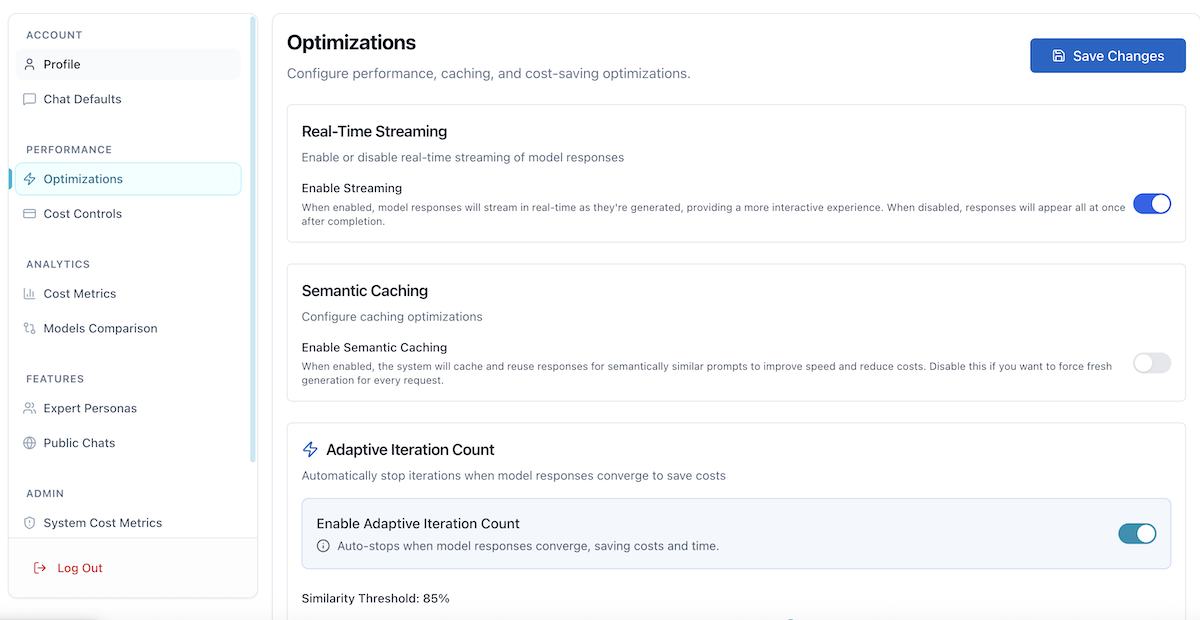
- Real-Time Streaming: Enable/disable streaming responses
- Semantic Caching: Toggle caching for similar prompts
- Adaptive Iteration Count: Enable convergence detection
- Smart Context Compression: Configure context summarization
- Smart Model Selection: Enable automatic tier-based model selection
Cost Controls (/user/cost) - Configure budget and limits:
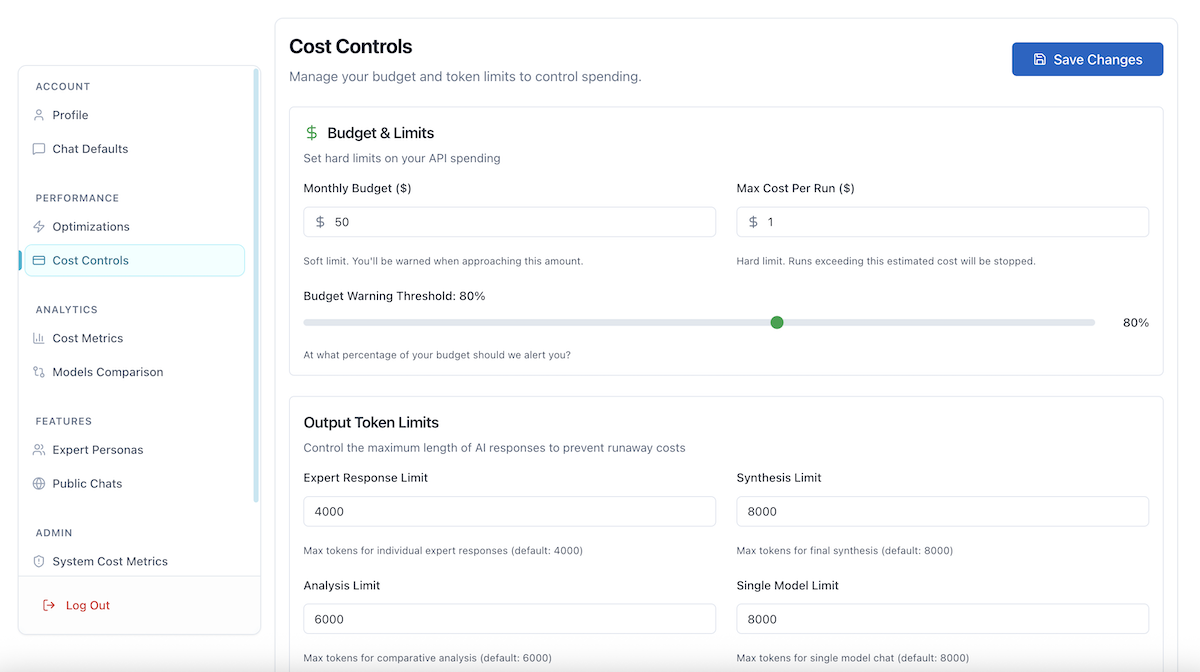
- Budget & Limits: Monthly budget, per-run limits, warning thresholds
- Output Token Limits: Expert response, synthesis, analysis, single model limits
Cost Metrics (/user/usage) - View your optimization savings:
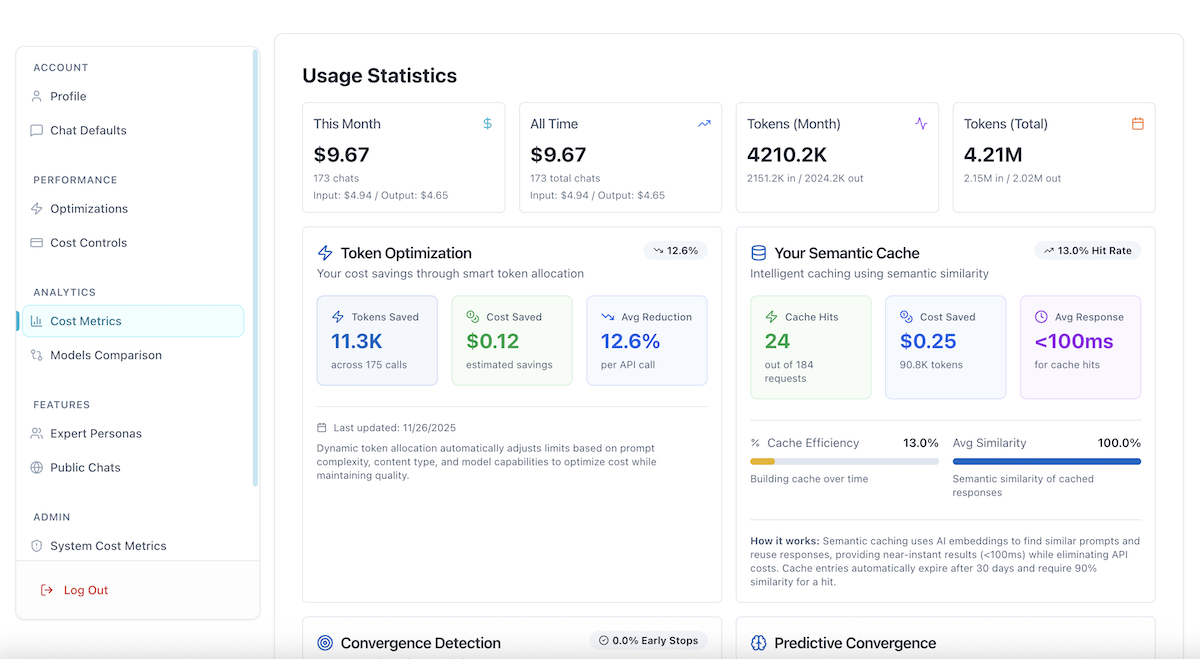
- Token Optimization metrics: Tokens saved, cost saved, average reduction
- Semantic Cache metrics: Cache hits, hit rate, cost saved, response times
- Usage statistics and trends
Navigate to Settings from the user menu in the top-right corner of the dashboard, or press ⌘/Ctrl+, to open settings. The settings sidebar lets you switch between different configuration sections.
Changes to settings take effect immediately for new chat sessions. Existing chat sessions continue using their original configuration until completed.
What are the default settings for each optimization?
AI Crucible uses carefully tuned defaults that balance cost savings with quality. These settings work for 90% of use cases without modification.
Streaming Responses:
- Enabled by default: ON
- Location: Optimizations (/user/optimizations)
- User configurable: Yes (toggle on/off)
- When to disable: Never recommended (no cost impact, pure UX benefit)
Dynamic Token Limits:
- Expert Response tokens: 4,000 (ensemble model responses)
- Synthesis tokens: 8,000 (final answer generation)
- Analysis tokens: 6,000 (comparison and evaluation)
- Single Model tokens: 8,000 (non-ensemble responses)
- Location: Cost Controls (/user/cost) → Output Token Limits
- User configurable: Yes (adjust each limit with sliders)
- Range: 256-8,192 tokens per limit
Semantic Caching:
- Enabled by default: ON (system-managed)
- Similarity threshold: 90% (prompts must be 90% similar for cache hit)
- Cache duration: 30 days (entries expire after 30 days)
- User configurable: Yes, via Optimizations (/user/optimizations). Users can toggle this off to force fresh responses.
- When to disable: Contact admin if you need guaranteed fresh responses
Adaptive Iteration Count / Convergence Detection:
- Enabled by default: OFF (opt-in feature)
- Similarity threshold: 85% (models must be 85% similar to converge)
- Minimum iterations: 2 (checks convergence after round 2+)
- Location: Optimizations (/user/optimizations) → Adaptive Iteration Count
- User configurable: Yes (enable/disable, adjust threshold 70-95%, change min iterations 2-5)
- When to disable: When you always want all requested rounds to complete
Predictive Convergence:
- Uses convergence settings above (no separate configuration)
- Minimum data points: 2 rounds (needs 2 rounds to calculate velocity)
- Confidence threshold: 40% (predictions below 40% confidence are not shown)
- User configurable: Inherits convergence settings
Smart Context Compression:
- Enabled by default: ON
- Max Context Tokens: 10,000 (compression triggers above this limit)
- Target Compression Ratio: 0.8 (aims to reduce context to 80% of original size)
- Compression Model: Gemini 1.5 Flash (fast, low-cost model for summarization)
- Location: Optimizations (/user/optimizations) → Context Compression
- User configurable: Yes (enable/disable, adjust threshold and ratio)
Smart Model Selection:
- Enabled by default: ON
- Prefer Cheaper Models: ON (prioritizes lower-cost models in same tier)
- Max Model Tier: 4 (Premium - allows use of all model tiers)
- Location: Optimizations (/user/optimizations) → Model Tier System
- User configurable: Yes (enable/disable, set max tier preference)
How do I view my optimization savings?
Your personal optimization metrics appear on the Cost Metrics page (/user/usage) in four dedicated metric cards. These update in real-time as you use the chat.
Token Optimization Card shows:
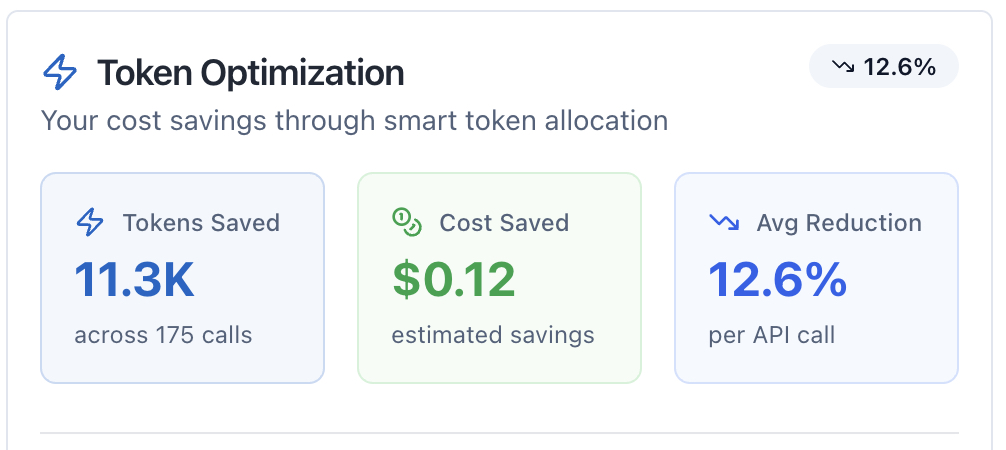
- Tokens Saved: Total tokens not used thanks to dynamic limits (e.g., "45.2K")
- Cost Saved: Estimated dollars saved from token optimization (e.g., "$12.50")
- Avg Reduction: Percentage saved per API call displayed as a badge (e.g., "12.3%")
- Total Calls: Number of API calls tracked (shown below tokens saved)
- Achievement Badge: Earn "Optimization Champion" status after saving 100K+ tokens
Semantic Cache Card shows:
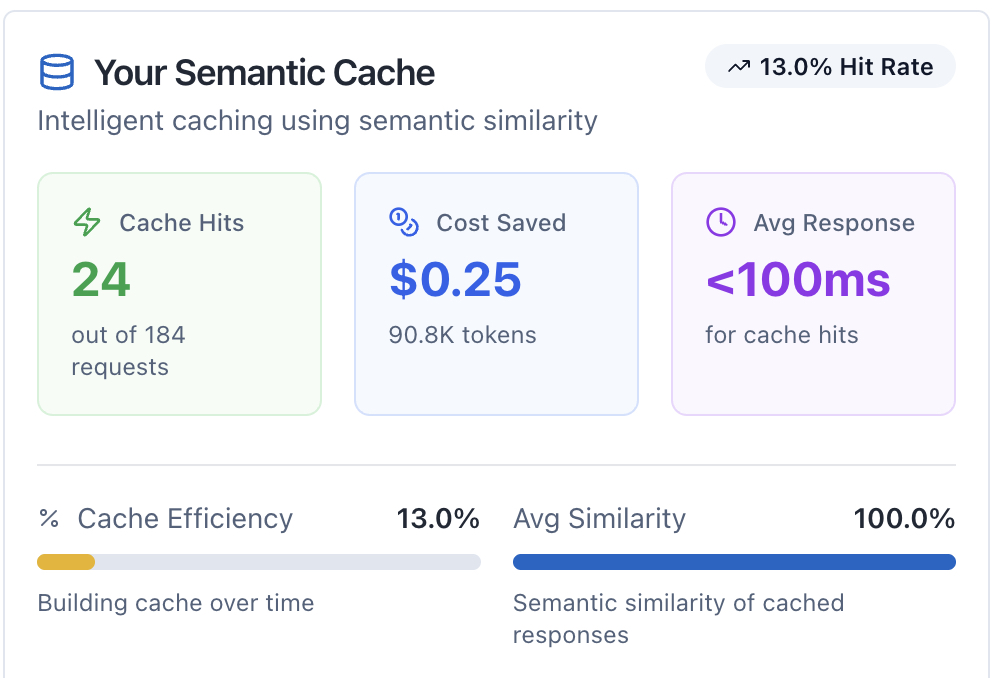
- Cache Hits: Number of requests served from cache (e.g., "38") with total requests context
- Cost Saved: Dollars saved from cached responses with tokens saved count
- Avg Response: Response time for cache hits (typically "<100ms")
- Cache Efficiency: Visual progress bar showing hit rate percentage with performance indicator
- Avg Similarity: Visual progress bar showing semantic similarity of cached matches
- Achievement Badge: Earn "Cache Optimization Champion" status with high hit rates
Convergence Detection Card shows:
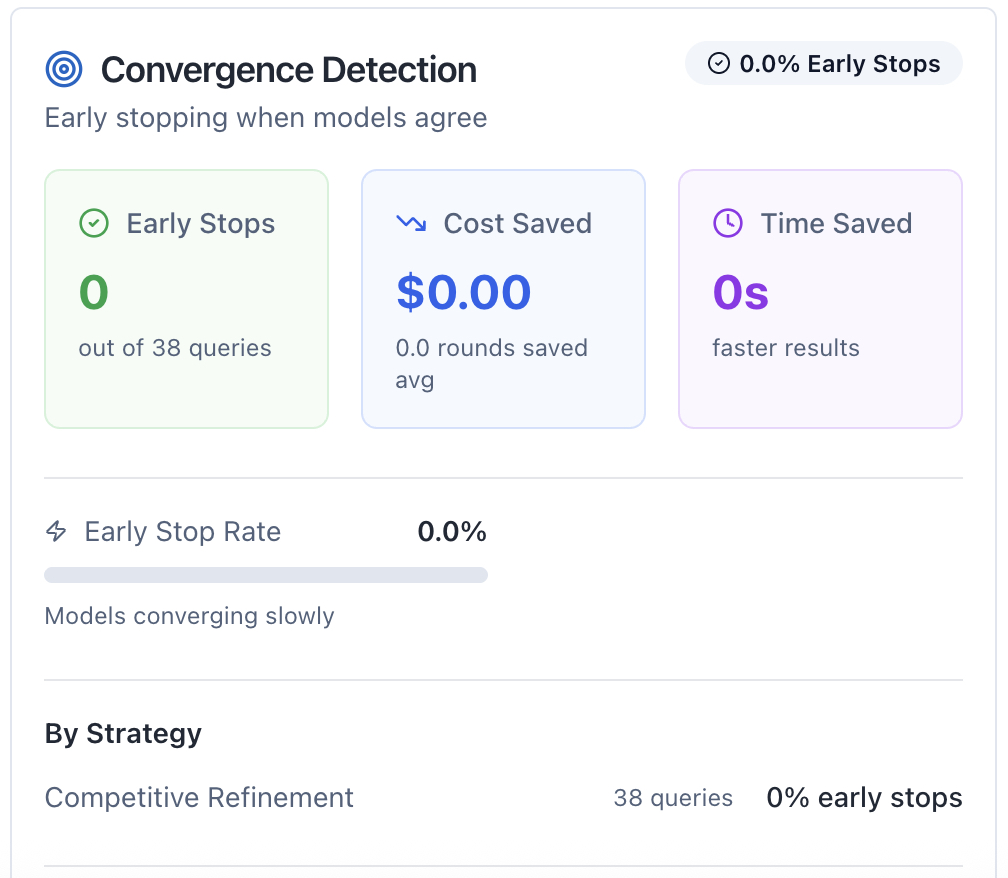
- Early Stops: Number of times strategies stopped early when models converged
- Cost Saved: Dollars saved from avoiding unnecessary rounds
- Time Saved: Total compute time saved from early termination
- Early Stop Rate: Percentage of queries that converged early with visual progress bar
- Avg Convergence Quality: Similarity level when models converged
- By Strategy: Breakdown showing which strategies converge most frequently
- Achievement Badge: Earn "Convergence Champion" status with high savings
Predictive Convergence Card shows:
- Predictions Made: Total number of convergence predictions generated
- Accuracy Rate: Percentage of predictions that were correct
- Avg Confidence: Average certainty level of predictions
- By Recommendation Type: Breakdown of prediction types (continue, stop soon, unlikely to converge) and their accuracy
- Achievement Badge: Earn "Prediction Master" status with high accuracy
All cards display "No data available yet" until you've made API calls using relevant features. The Cost Metrics page also includes usage statistics, monthly cost trends, token usage charts, and detailed cost breakdowns by model.
How does streaming improve the user experience?
Streaming responses provide real-time feedback as each AI model generates its response. Instead of waiting 30-90 seconds for all models to complete, you see partial results within 5-8 seconds.
Each model's response appears progressively as it's generated. The progress indicator shows which models are typing, which have finished, and the current round status. This creates the perception of 2-3x faster performance even though actual API time remains the same.
Streaming adds zero cost because it uses the same API endpoints with streaming enabled. The total tokens consumed are identical whether streaming is on or off. The only difference is when you see the results: gradually as they arrive, or all at once at the end.
Technical users can disable streaming in settings if they prefer to wait for complete responses. However, streaming is strongly recommended for typical use cases as it significantly improves perceived responsiveness.
How do dynamic token limits save costs?
Dynamic token limits automatically adjust the maxOutputTokens parameter based on prompt complexity and content type. Simple prompts get fewer tokens, complex prompts get more, eliminating waste.
The system analyzes your prompt to estimate required output length. A simple question like "What is React?" receives 512 tokens. A complex request like "Design a distributed microservices architecture" receives 2,048 tokens. This prevents over-allocation for simple tasks while ensuring complex tasks have adequate capacity.
Different stages of ensemble strategies receive different limits. Expert responses in Competitive Refinement use 512 tokens since they're concise contributions. The final synthesis uses 1,024 tokens to combine all inputs. Analysis and evaluation stages receive 2,048 tokens for detailed comparisons.
The savings compound across multiple API calls. If your average session uses 3 models across 3 rounds (9 API calls), and each call saves 100-200 tokens through smart limits, you save 900-1,800 tokens per session. At typical pricing, this translates to 10-15% cost reduction.
You can override these defaults in settings if your use case consistently needs more or fewer tokens. For example, if you write long-form content, increase the synthesis limit to 2,048 or 4,096 tokens.
How does semantic caching work?
Semantic caching uses AI embeddings to identify when a new prompt is similar to a previous prompt. If the similarity exceeds 90%, the system returns the cached response instead of calling the API again.
When you submit a prompt, the system generates an embedding vector (a numerical representation of the prompt's meaning). This vector is compared against cached prompts using cosine similarity. If a cached prompt scores 90% or higher similarity, you get the cached response in under 100ms with zero API cost.
Cached responses include complete metadata: the original prompt, all model responses, token counts, and timestamps. The returned data is identical to a fresh API call, maintaining consistency across your application.
Cache entries expire after 30 days to ensure responses don't become stale. The 30-day window balances hit rate (longer = more hits) with freshness (shorter = more current). You can force fresh responses by adding "ignore cache" or similar text to your prompt.
The similarity threshold is configurable from 85-95%. Lower thresholds (85%) increase hit rate but may return less relevant cached responses. Higher thresholds (95%) ensure highly relevant matches but reduce hit rate. The default 90% balances relevance and savings.
What is convergence detection?
Convergence detection (called "Adaptive Iteration Count" in the UI) automatically stops multi-round strategies when model responses become sufficiently similar. If models reach 85% agreement after round 2 of a 5-round session, the system stops and saves rounds 3-5.
After each round (starting from round 2), the system calculates pairwise similarity between all model responses. If the average similarity exceeds your threshold (default 85%), the system considers responses "converged" and terminates the session early.
Early termination saves both time and money. A 5-round session that converges in round 3 saves 40% of API costs and time for that session. Across many sessions, convergence detection typically saves 15-20% overall.
The minimum iterations setting (default 2, configurable 2-5) ensures the system never stops after round 1. This prevents premature termination when models haven't had enough rounds to refine their responses. Most strategies benefit from at least 2 rounds of iteration.
You can adjust the similarity threshold (70-95% range) based on your quality requirements. Higher thresholds (95%) ensure models are nearly identical before stopping, providing more consistent output. Lower thresholds (70-80%) enable earlier stopping but responses may vary more. The default 85% provides a good balance.
What is predictive convergence?
Predictive convergence uses velocity and acceleration tracking to predict when models will converge, enabling proactive stopping decisions. The system analyzes how quickly similarity increases across rounds and estimates how many more rounds are needed.
Velocity measures the rate of similarity change between rounds. If round 1 shows 45% similarity and round 2 shows 72% similarity, velocity is +27%. Positive velocity indicates models are converging.
Acceleration measures the change in velocity. If velocity was +15% in the previous interval and is now +27%, acceleration is +12%. Positive acceleration means convergence is speeding up.
The predictor combines these metrics to estimate rounds remaining. If current similarity is 75% with velocity +15%, and threshold is 90%, the system calculates approximately 1 round remaining (15% gap / 15% velocity = 1 round).
Predictions include confidence scores from 0-100%. High confidence (>80%) predictions trigger proactive notifications: "Predicted to converge in next round (85% confidence)". Low confidence (<40%) predictions aren't shown to avoid noise.
The system provides three recommendations: continue (progressing normally), stop_soon (convergence imminent), or unlikely_to_converge (models are diverging or stagnant).
How are metrics calculated and updated?
Metrics update in real-time as you use the chat, with backend aggregation running daily to maintain historical trends.
Real-time tracking occurs during each API call:
- Token optimization: Tracked when API calls complete
- Semantic caching: Tracked on each cache check (hit or miss)
- Convergence detection: Tracked when convergence occurs
- Predictive convergence: Tracked when predictions are made
Daily aggregation runs at midnight UTC:
- Rolls up individual events into daily summaries
- Calculates 30-day averages and trends
- Generates per-model and per-strategy breakdowns
Frontend refresh occurs:
- On page load (fetches latest metrics from backend)
- When you click refresh button (if available)
- Automatically after completing chat sessions
Metrics have slight delays (typically 1-5 minutes) between API call completion and dashboard updates due to backend processing. This ensures accurate calculations without impacting chat performance.
How do I maximize my savings?
Maximize savings by using ensemble strategies with multiple rounds, asking similar questions when possible, and keeping default optimization settings enabled.
For maximum token savings:
- Use ensemble strategies instead of single-model responses (automatically applies optimized limits)
- Let the system auto-adjust token limits based on prompt complexity
- Avoid overriding token limits unless necessary for your specific use case
For maximum cache savings:
- Ask similar questions in succession when exploring a topic
- Use consistent phrasing for common queries
- Keep semantic caching enabled (default ON)
- Use the default 90% similarity threshold
For maximum convergence savings:
- Use multi-round strategies (2+ iterations) like Competitive Refinement and Expert Panel
- Keep convergence enabled with 90% threshold (default)
- Set minimum iterations to 2 (prevents premature stopping)
- Let predictive convergence guide stopping decisions
For maximum streaming benefits:
- Keep streaming enabled for better UX (default ON)
- Watch real-time predictions during multi-round sessions
- Use progress indicators to understand convergence status
What if my metrics show low savings?
Low savings typically occur when you're new to the platform, using simple prompts, or primarily using single-model strategies. Several factors affect optimization effectiveness.
Token optimization savings are lowest for:
- Simple prompts that don't benefit from dynamic limits
- Single-model strategies (less optimization opportunity)
- Users who manually override token limits
Cache hit rates are lowest for:
- New users who haven't built up cache history
- Highly variable prompts with little similarity
- Users who disable semantic caching
Convergence savings are lowest for:
- Single-round strategies (no opportunity for early stopping)
- Debate-style strategies where models deliberately disagree
- Users who disable convergence detection
To increase savings: Use multi-round ensemble strategies with diverse prompts for better cache building. Keep all optimizations enabled with default settings. Ask follow-up questions on similar topics to leverage semantic caching.
Are there trade-offs to aggressive optimization?
The default optimization settings balance savings with quality. Overly aggressive settings can impact response quality or user experience.
Token limit trade-offs:
- Setting limits too low (<256 tokens) can cut off responses mid-sentence
- Setting limits too high (>4,096 tokens) wastes cost without quality improvement
- Default limits (512-2,048) work for 90% of use cases
Cache threshold trade-offs:
- Lower thresholds (<85%) may return less relevant cached responses
- Higher thresholds (>95%) reduce hit rate, lowering savings
- Default 90% balances relevance and savings
Convergence threshold trade-offs:
- Lower thresholds (<85%) may stop before models fully agree
- Higher thresholds (>95%) rarely trigger, reducing savings
- Setting minimum iterations too low (1) can cause premature stopping
Streaming trade-offs:
- Disabling streaming provides no cost benefit and worsens UX
- Network latency can affect streaming smoothness
- No quality impact (same API responses)
The recommended approach: Start with defaults, monitor metrics for 1-2 weeks, then adjust if specific use cases require different settings.
Can I disable optimizations completely?
Yes, most optimizations are user-configurable and can be disabled. However, disabling optimizations increases costs without improving quality.
To disable streaming:
- Go to Optimizations (/user/optimizations)
- Toggle "Enable Streaming" to OFF
- Click "Save Settings"
To disable semantic caching:
- Go to Optimizations (/user/optimizations)
- Toggle "Enable Semantic Caching" to OFF
- Click "Save Settings"
Note: Disabling semantic caching will force fresh responses for every query but will increase costs and response times.
To disable convergence detection (Adaptive Iteration Count):
- Go to Optimizations (/user/optimizations)
- Scroll to "Adaptive Iteration Count" section
- Toggle "Enable Adaptive Iteration Count" to OFF
- Click "Save Settings"
To disable dynamic token limits:
- Go to Cost Controls (/user/cost)
- Scroll to "Output Token Limits" section
- Set all limits to maximum values (8,192 tokens)
- Click "Save Settings"
Disabling optimizations is not recommended unless you have specific requirements like always running all requested rounds (disable convergence) or needing maximum-length responses (increase token limits).
Frequently Asked Questions
How much money will I save with optimizations?
Savings vary by usage patterns, but typical users save 35-48% compared to baseline API costs. With all optimizations enabled, the system achieves $260-360/month savings at typical scale (1,000 users, 5 queries/month/user). Individual users see proportional savings based on their usage.
Do optimizations affect response quality?
No, optimizations are designed to maintain quality while reducing costs. Dynamic token limits provide adequate capacity for each task. Semantic caching returns identical cached responses. Convergence only stops when models already agree. Quality remains consistent across all optimization levels.
Can I use different settings for different strategies?
Currently, settings apply globally to all strategies. Strategy-specific optimization profiles are under consideration for future releases. The current approach uses defaults that work well across all strategies, with minimal quality variation.
Why is my cache hit rate low?
Low hit rates (under 20%) are normal for new users or those with highly variable prompts. Cache performance improves over time as you build history. Similar questions in succession yield highest hit rates. Typical users see 30-50% hit rates after 2-3 weeks of regular use.
Does streaming use more bandwidth?
Streaming uses slightly more bandwidth due to chunked transfer encoding overhead (typically 5-10% more). However, the bandwidth increase is negligible compared to the UX improvement. Most users have sufficient bandwidth for smooth streaming.
How do I know if convergence stopped early?
When convergence triggers early termination, you see a message during the chat: "Responses converged at 92% similarity after round 3 of 5." This indicates 2 rounds were saved. The final results include all completed rounds with convergence metadata.
Can I force all rounds to complete?
Yes, disable convergence detection in settings. With convergence OFF, the system always completes all requested rounds regardless of similarity. This is useful when you want to see how responses evolve across all iterations.
How long are cache entries stored?
Cache entries expire after 30 days. This balances hit rate (longer = more hits) with freshness (shorter = more current). After 30 days, responses are considered potentially stale and are automatically evicted. The 30-day window was chosen based on typical usage patterns.
Do optimizations work with all AI models?
Yes, optimizations work uniformly across all AI providers (OpenAI, Anthropic, Google, DeepSeek). Dynamic token limits adjust based on model capabilities. Semantic caching uses provider-agnostic embeddings. Convergence detection works identically regardless of provider.
What future optimizations are being considered?
Several advanced optimizations are under evaluation. These include per-strategy optimization profiles (custom settings for each ensemble strategy) and machine learning-based prediction models (learn from historical patterns to improve accuracy). We are also exploring automatic threshold adjustment based on quality feedback (self-tuning optimization) and cache warming for frequently accessed prompts (preload popular queries). These enhancements aim to further improve efficiency without requiring manual configuration.
Next Steps
Ready to optimize your AI Crucible costs? Start by reviewing your current settings and metrics, then experiment with different configurations to find your optimal balance.
Recommended actions:
- Visit /user/usage to view your current optimization metrics across all four phases
- Visit /user/cost to review and configure cost-saving settings
- Enable "Adaptive Iteration Count" in Optimizations to auto-stop when models converge
- Keep all optimizations enabled with default settings for 1-2 weeks
- Monitor your savings on the Cost Metrics page regularly
- Use multi-round ensemble strategies to maximize savings
Learn more:
- Getting Started Guide - New to AI Crucible? Start here
- Seven Ensemble Strategies - Choose the right strategy for your task
- AI Crucible Overview - Understand how ensemble AI works